Nodes
The Nodes screen displays all devices visible on your mesh network.
Node List
The node list shows every node your radio has heard, including:
- Node name — user-configured long name
- Short name — 4-character identifier
- Signal quality — last heard signal strength
- Last heard — time since last communication
- Distance — estimated distance (if positions are shared)
- Battery — remote node battery level (if telemetry is enabled)
Node Status Indicators
| Badge | Meaning |
|---|---|
| 🟢 Online | Node heard within the last 2 hours |
| ⚪ Offline | Node not heard for over 2 hours |
| ⭐ Favorite | Node marked as favorite by the user |
A node is considered online if it was heard within the last 2 hours, and offline otherwise — there is no separate "away" tier.
Node Roles
Nodes can be configured with different roles that affect their mesh behavior:
| Role | Description |
|---|---|
| Client | Standard end-user device |
| Client Base | Treats favorited-node traffic as Router Late priority; all other traffic as Client |
| Client Mute | Receives but doesn't retransmit |
| Client Hidden | Like Client Mute, plus hides from node list |
| Router | Prioritizes message forwarding; stays awake to relay |
| Router Late | Infrastructure node that rebroadcasts once, but only after all other modes (provides supplemental coverage) |
| ⚠️ Deprecated (removed in firmware 2.3.15) — no longer selectable; use Router or Client instead | |
| ⚠️ Deprecated (removed in firmware 2.7.11) — no longer selectable; use Router instead | |
| Tracker | Optimized for position reporting at regular intervals |
| Sensor | Optimized for telemetry reporting |
| TAKTAK (Team Awareness Kit). A situational awareness ecosystem. Meshtastic bridges to it by converting mesh messages to and from Cursor on Target format. | Interoperates with TAKTAK (Team Awareness Kit). A situational awareness ecosystem. Meshtastic bridges to it by converting mesh messages to and from Cursor on Target format. systems (sends/receives CoT) |
| TAKTAK (Team Awareness Kit). A situational awareness ecosystem. Meshtastic bridges to it by converting mesh messages to and from Cursor on Target format. Tracker | TAKTAK (Team Awareness Kit). A situational awareness ecosystem. Meshtastic bridges to it by converting mesh messages to and from Cursor on Target format. position reporting only |
| Lost & Found | Continuous position beacon for recovery |
Choosing a Role
Most users should keep the default Client role. Consider a different role when:
- Router — You have a node in a fixed, elevated location with reliable power (rooftop, hilltop). Routers stay awake continuously to relay messages for others and are essential for extending mesh coverage. Don't use Router on battery-powered handheld devices.
- Router Late — An infrastructure node that always rebroadcasts packets once but only after all other routing modes have had their turn. Provides supplemental coverage for local clusters without competing with primary routers.
- Client Base — Treats traffic from/to your favorited nodes with Router Late priority (ensuring those messages get extra relay coverage) while handling everything else as a normal Client.
- Client Mute — You want to receive mesh traffic but not contribute to relaying. Useful for monitoring-only devices or to reduce congestion in dense areas.
- Tracker — An unattended device whose sole purpose is broadcasting its GPSGPS (Global Positioning System). A satellite positioning system. A node with a GPS module determines its own location and can report that position to the mesh. position (e.g., a vehicle, pet, or asset). Sleeps between broadcasts to conserve battery.
- Sensor — An unattended device reporting environmental telemetry (temperature, humidity, air quality). Similar power profile to Tracker.
- TAKTAK (Team Awareness Kit). A situational awareness ecosystem. Meshtastic bridges to it by converting mesh messages to and from Cursor on Target format. / TAKTAK (Team Awareness Kit). A situational awareness ecosystem. Meshtastic bridges to it by converting mesh messages to and from Cursor on Target format. Tracker — Only needed if interoperating with ATAKATAK (Android Team Awareness Kit). The Android TAK client. An official Meshtastic plugin forwards its Cursor on Target traffic over the mesh./WinTAK systems. See TAK Integration for details.
💡 Tip: The mesh works best when most nodes are Client or Router. Too many Mute nodes reduces mesh resilience; too many Routers in a dense area can cause congestion. A good rule of thumb: one Router per 5–10 Clients in your area.
Encryption Indicators
Nodes display encryption status icons next to their name:
| Icon | Meaning |
|---|---|
| 🔒 Locked | Communication uses PKI (public key infrastructure) — end-to-end encrypted with verified identity |
| 🔓 Unlocked | Communication uses shared channel PSKPSK (Pre-Shared Key). A secret code or passphrase used in Meshtastic channels for encryption, ensuring that only devices with the matching PSK can communicate within that specific channel. — encrypted but identity not individually verified |
| ⚠️ Mismatch | Public key mismatch — the node's key has changed since last seen (investigate before trusting) |
💡 Tip: PKI encryption (firmware 2.5+) provides stronger security than channel PSKPSK (Pre-Shared Key). A secret code or passphrase used in Meshtastic channels for encryption, ensuring that only devices with the matching PSK can communicate within that specific channel. because each node has a unique key pair. If you see a key mismatch warning, the node may have been reset or compromised.
Quick Actions
From the node list, you can:
- Tap a node to view its detail page
- Long-press for quick actions:
- Mark/remove favorite
- Mute/unmute notifications
- Send a direct message
- Trace route
- Ignore/unignore
- Remove node
Filtering & Sorting
Text Search
Type in the search field to filter nodes by name or short name. The filter updates in real time as you type.
Filter Toggles
| Filter | Description |
|---|---|
| Only online | Show only nodes heard within the last 2 hours |
| Only direct | Show only nodes with direct (non-relayed) connections |
| Include unknown | Show nodes that haven't sent user info yet |
| Exclude infrastructure | Hide infrastructure-role nodes (Router, Router Late, Client Base) |
| Exclude MQTTMQTT (Message Queuing Telemetry Transport). A lightweight messaging protocol designed for small sensors and mobile devices, enabling efficient data transmission in the Meshtastic network for Internet connectivity and integration with IoT platforms. See https://en.wikipedia.org/wiki/MQTT. In Meshtastic, MQTT is used to connect a node to the internet, and can be used to connect multiple meshes to each other. | Hide nodes heard only via MQTTMQTT (Message Queuing Telemetry Transport). A lightweight messaging protocol designed for small sensors and mobile devices, enabling efficient data transmission in the Meshtastic network for Internet connectivity and integration with IoT platforms. See https://en.wikipedia.org/wiki/MQTT. In Meshtastic, MQTT is used to connect a node to the internet, and can be used to connect multiple meshes to each other. internet bridge |
| Show ignored | Show nodes you've previously dismissed or muted |
Sort Options
| Sort | Description |
|---|---|
| Last heard (default) | Most recently heard nodes first |
| Alphabetical | Sorted by node long name |
| Distance | Nearest nodes first (requires position sharing) |
| Hops away | Fewest relay hops first |
| Channel | Grouped by channel index |
| Via MQTTMQTT (Message Queuing Telemetry Transport). A lightweight messaging protocol designed for small sensors and mobile devices, enabling efficient data transmission in the Meshtastic network for Internet connectivity and integration with IoT platforms. See https://en.wikipedia.org/wiki/MQTT. In Meshtastic, MQTT is used to connect a node to the internet, and can be used to connect multiple meshes to each other. | Grouped by MQTTMQTT (Message Queuing Telemetry Transport). A lightweight messaging protocol designed for small sensors and mobile devices, enabling efficient data transmission in the Meshtastic network for Internet connectivity and integration with IoT platforms. See https://en.wikipedia.org/wiki/MQTT. In Meshtastic, MQTT is used to connect a node to the internet, and can be used to connect multiple meshes to each other. vs. radio-heard |
| Favorites | Favorited nodes first |
Nodes per Hop
Tap the hop-histogram icon in the node list's app bar to open a bar chart of how many nodes sit at each hop distance (0 = direct, 1 = one relay away, and so on). Filter the chart to a last heard window — All time, 1 hour, 8 hours, or 24 hours — to see how the mesh looks right now versus over a longer period. It's a quick way to gauge how busy and spread out your local mesh is.
Node Detail
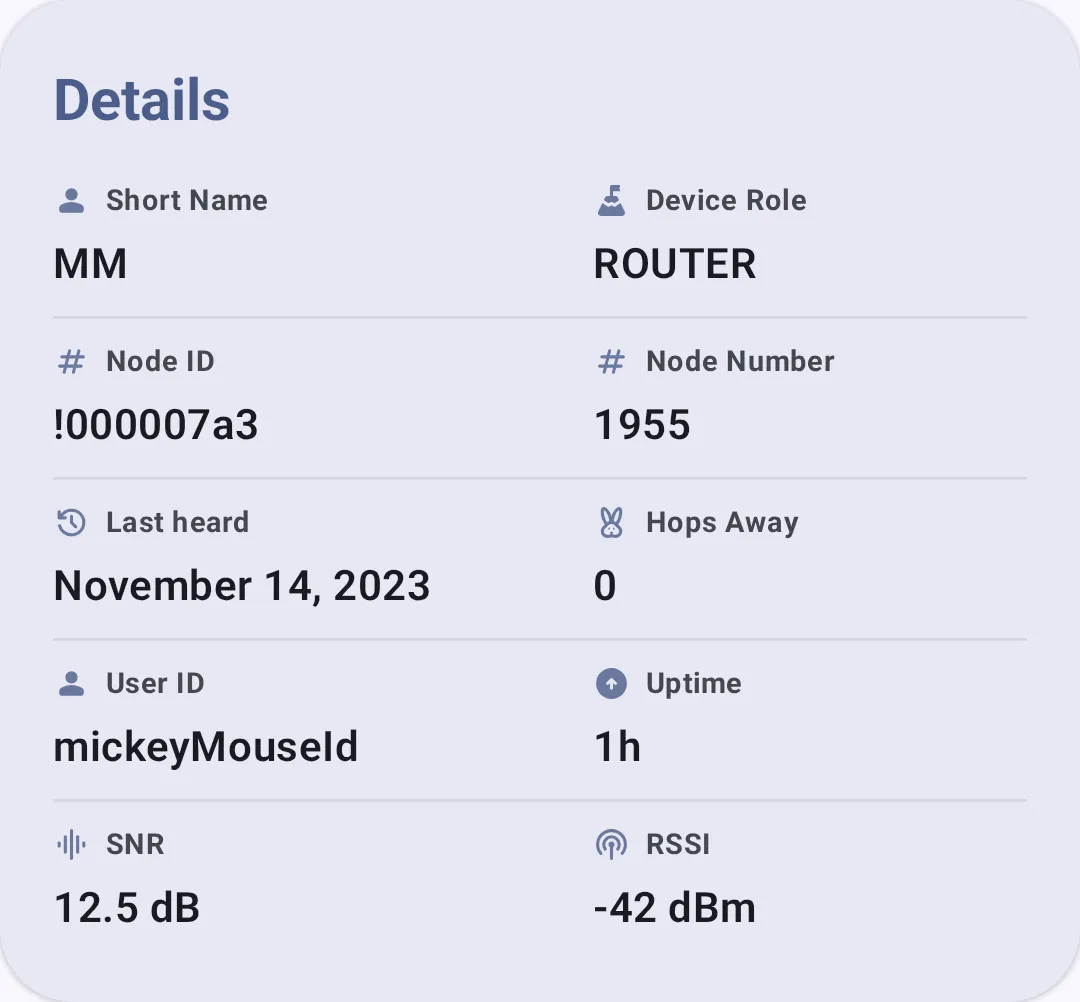
Tapping a node opens the detail view with comprehensive information. See Node Metrics for full details on metrics and telemetry.

The detail screen includes device info, position, and action buttons:
Inline status indicators show key metrics at a glance:
| Indicator | Screenshot |
|---|---|
| Signal quality |  |
| Battery level |  |
| Hop count |  |
| Last heard |  |
| Distance |  |
Device Links ("I want one")
When a node's hardware is recognized, the detail view shows a collapsible "I want one" section linking to places to buy or learn more about that device: the vendor's product page, product variants, and regional marketplace listings (such as AliExpress, Amazon, and supported retailers), filtered to your country. Each link opens through the msh.to redirect service. Devices with no matching links don't show the section.
A full, browsable directory of every link is also available under Settings → Help & Documentation → Device Links.
Related Topics
- Node Metrics — detailed telemetry dashboards for each node
- Messages & Channels — send a direct message to a node
- Map & Waypoints — view node positions geographically
- Discovery — traceroute and neighbor info for topology exploration
- Signal Meter — understand what the signal bars mean