TAK Integration
Meshtastic integrates with the Team Awareness Kit (TAKTAK (Team Awareness Kit). A situational awareness ecosystem. Meshtastic bridges to it by converting mesh messages to and from Cursor on Target format.) ecosystem, enabling interoperability between Meshtastic mesh devices and TAKTAK (Team Awareness Kit). A situational awareness ecosystem. Meshtastic bridges to it by converting mesh messages to and from Cursor on Target format. applications like ATAKATAK (Android Team Awareness Kit). The Android TAK client. An official Meshtastic plugin forwards its Cursor on Target traffic over the mesh. and WinTAK.
Overview
The TAKTAK (Team Awareness Kit). A situational awareness ecosystem. Meshtastic bridges to it by converting mesh messages to and from Cursor on Target format. module allows Meshtastic nodes to:
- Share position data in TAKTAK (Team Awareness Kit). A situational awareness ecosystem. Meshtastic bridges to it by converting mesh messages to and from Cursor on Target format.-compatible CoT (Cursor on Target) format
- Appear as team members on TAKTAK (Team Awareness Kit). A situational awareness ecosystem. Meshtastic bridges to it by converting mesh messages to and from Cursor on Target format. map displays
- Receive TAKTAK (Team Awareness Kit). A situational awareness ecosystem. Meshtastic bridges to it by converting mesh messages to and from Cursor on Target format. PLI (Position Location Information) messages
Setup
Prerequisites
- ATAKATAK (Android Team Awareness Kit). The Android TAK client. An official Meshtastic plugin forwards its Cursor on Target traffic over the mesh. (Android Team Awareness Kit) or WinTAK installed
- Meshtastic ATAKATAK (Android Team Awareness Kit). The Android TAK client. An official Meshtastic plugin forwards its Cursor on Target traffic over the mesh. Plugin installed
- TAKTAK (Team Awareness Kit). A situational awareness ecosystem. Meshtastic bridges to it by converting mesh messages to and from Cursor on Target format. module enabled on your Meshtastic radio
Configuration
- Navigate to Settings → Module Config → TAKTAK (Team Awareness Kit). A situational awareness ecosystem. Meshtastic bridges to it by converting mesh messages to and from Cursor on Target format..
- Enable the TAKTAK (Team Awareness Kit). A situational awareness ecosystem. Meshtastic bridges to it by converting mesh messages to and from Cursor on Target format. module.
- Configure the TAKTAK (Team Awareness Kit). A situational awareness ecosystem. Meshtastic bridges to it by converting mesh messages to and from Cursor on Target format. team/group settings:

| Setting | Description |
|---|---|
| Enabled | Activate TAKTAK (Team Awareness Kit). A situational awareness ecosystem. Meshtastic bridges to it by converting mesh messages to and from Cursor on Target format. interop |
| Mode | TAKTAK (Team Awareness Kit). A situational awareness ecosystem. Meshtastic bridges to it by converting mesh messages to and from Cursor on Target format.-compatible output mode |
ATAK Plugin Setup
- Install the Meshtastic ATAKATAK (Android Team Awareness Kit). The Android TAK client. An official Meshtastic plugin forwards its Cursor on Target traffic over the mesh. Plugin from the plugin repository.
- Open ATAKATAK (Android Team Awareness Kit). The Android TAK client. An official Meshtastic plugin forwards its Cursor on Target traffic over the mesh. and enable the Meshtastic plugin.
- The plugin bridges messages between ATAKATAK (Android Team Awareness Kit). The Android TAK client. An official Meshtastic plugin forwards its Cursor on Target traffic over the mesh. and your mesh network.
Local TAK Server
The app can also run a local TAKTAK (Team Awareness Kit). A situational awareness ecosystem. Meshtastic bridges to it by converting mesh messages to and from Cursor on Target format. server so ATAKATAK (Android Team Awareness Kit). The Android TAK client. An official Meshtastic plugin forwards its Cursor on Target traffic over the mesh./iTAK on the same device can connect directly, without a remote TAKTAK (Team Awareness Kit). A situational awareness ecosystem. Meshtastic bridges to it by converting mesh messages to and from Cursor on Target format. server. The server binds to localhost only (127.0.0.1:8089) and uses TLS with mutual certificate authentication (mTLS), so it is not reachable from other devices on the network. Open Settings → Module Config → TAKTAK (Team Awareness Kit). A situational awareness ecosystem. Meshtastic bridges to it by converting mesh messages to and from Cursor on Target format. → TAKTAK (Team Awareness Kit). A situational awareness ecosystem. Meshtastic bridges to it by converting mesh messages to and from Cursor on Target format. Server:
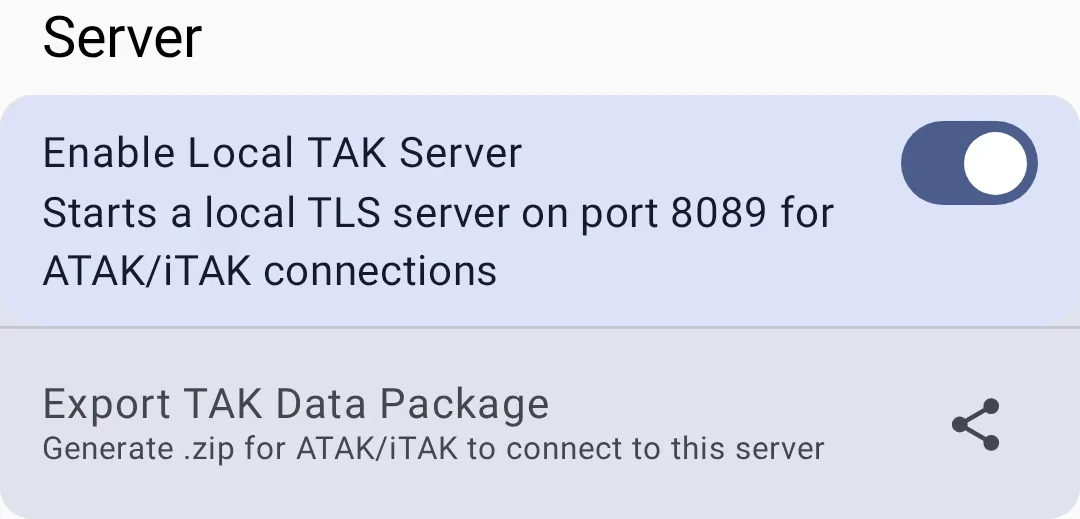
- Enable Local TAKTAK (Team Awareness Kit). A situational awareness ecosystem. Meshtastic bridges to it by converting mesh messages to and from Cursor on Target format. Server — starts the loopback-only mTLS server on port 8089 for ATAKATAK (Android Team Awareness Kit). The Android TAK client. An official Meshtastic plugin forwards its Cursor on Target traffic over the mesh./iTAK connections from the same device.
- TAKTAK (Team Awareness Kit). A situational awareness ecosystem. Meshtastic bridges to it by converting mesh messages to and from Cursor on Target format. Mesh Channel — selects which Meshtastic channel outgoing TAKTAK (Team Awareness Kit). A situational awareness ecosystem. Meshtastic bridges to it by converting mesh messages to and from Cursor on Target format. traffic is sent on (default: the primary channel, index 0). Incoming TAKTAK (Team Awareness Kit). A situational awareness ecosystem. Meshtastic bridges to it by converting mesh messages to and from Cursor on Target format. traffic is accepted from any channel. Matches the equivalent setting on iOS and in the legacy ATAKATAK (Android Team Awareness Kit). The Android TAK client. An official Meshtastic plugin forwards its Cursor on Target traffic over the mesh. plugin.
- Export TAKTAK (Team Awareness Kit). A situational awareness ecosystem. Meshtastic bridges to it by converting mesh messages to and from Cursor on Target format. Data Package — generates a
.zipdata package that ATAKATAK (Android Team Awareness Kit). The Android TAK client. An official Meshtastic plugin forwards its Cursor on Target traffic over the mesh./iTAK can import to connect to this server.
TAK Roles
Nodes configured with TAKTAK (Team Awareness Kit). A situational awareness ecosystem. Meshtastic bridges to it by converting mesh messages to and from Cursor on Target format.-related roles behave differently from standard clients:
| Role | Description |
|---|---|
| TAKTAK (Team Awareness Kit). A situational awareness ecosystem. Meshtastic bridges to it by converting mesh messages to and from Cursor on Target format. | Full TAKTAK (Team Awareness Kit). A situational awareness ecosystem. Meshtastic bridges to it by converting mesh messages to and from Cursor on Target format. interoperability — sends and receives CoT data, chat messages, and PLI updates. Functions as a standard client plus TAKTAK (Team Awareness Kit). A situational awareness ecosystem. Meshtastic bridges to it by converting mesh messages to and from Cursor on Target format. bridge. |
| TAKTAK (Team Awareness Kit). A situational awareness ecosystem. Meshtastic bridges to it by converting mesh messages to and from Cursor on Target format. Tracker | Position-only TAKTAK (Team Awareness Kit). A situational awareness ecosystem. Meshtastic bridges to it by converting mesh messages to and from Cursor on Target format. output — automatically broadcasts PLI at regular intervals without user interaction. Optimized for unattended position beacons (vehicles, equipment, waypoints). Does not relay chat messages. |
💡 Tip: Use TAKTAK (Team Awareness Kit). A situational awareness ecosystem. Meshtastic bridges to it by converting mesh messages to and from Cursor on Target format. Tracker for devices that only need to report position (e.g., a radio mounted in a vehicle). Use TAKTAK (Team Awareness Kit). A situational awareness ecosystem. Meshtastic bridges to it by converting mesh messages to and from Cursor on Target format. for devices where users actively participate in TAKTAK (Team Awareness Kit). A situational awareness ecosystem. Meshtastic bridges to it by converting mesh messages to and from Cursor on Target format. operations.
CoT (Cursor on Target) Format
TAKTAK (Team Awareness Kit). A situational awareness ecosystem. Meshtastic bridges to it by converting mesh messages to and from Cursor on Target format. messages use the Cursor on Target XML format — a military standard for sharing situational awareness data. Meshtastic converts its internal protobufProtobuf (Protocol Buffers). A method developed by Google for serializing structured data, used in Meshtastic for efficient communication protocol between devices. messages to CoT format when bridging to TAKTAK (Team Awareness Kit). A situational awareness ecosystem. Meshtastic bridges to it by converting mesh messages to and from Cursor on Target format. systems, so no manual format conversion is needed.
TAK Identity
When using TAKTAK (Team Awareness Kit). A situational awareness ecosystem. Meshtastic bridges to it by converting mesh messages to and from Cursor on Target format. roles, your node broadcasts identity information that appears on TAKTAK (Team Awareness Kit). A situational awareness ecosystem. Meshtastic bridges to it by converting mesh messages to and from Cursor on Target format. maps:
| Setting | Description |
|---|---|
| Team Color | Your team color on the TAKTAK (Team Awareness Kit). A situational awareness ecosystem. Meshtastic bridges to it by converting mesh messages to and from Cursor on Target format. map (e.g., Blue, Red, Cyan, Green) |
| Member Role | Your operational role (Team Member, Team Lead, HQ, Medic, RTO, etc.) |
These settings appear in Settings → Module Config → TAKTAK (Team Awareness Kit). A situational awareness ecosystem. Meshtastic bridges to it by converting mesh messages to and from Cursor on Target format. when the TAKTAK (Team Awareness Kit). A situational awareness ecosystem. Meshtastic bridges to it by converting mesh messages to and from Cursor on Target format. module is enabled. Your TAKTAK (Team Awareness Kit). A situational awareness ecosystem. Meshtastic bridges to it by converting mesh messages to and from Cursor on Target format. callsign isn't a separate setting — it's derived automatically from your Meshtastic node name.
💡 Tip: Team/role colors are the standard TAKTAK (Team Awareness Kit). A situational awareness ecosystem. Meshtastic bridges to it by converting mesh messages to and from Cursor on Target format. affiliation colors. Coordinate with your TAKTAK (Team Awareness Kit). A situational awareness ecosystem. Meshtastic bridges to it by converting mesh messages to and from Cursor on Target format. team to use consistent team assignments.
Wire Format (V1 / V2)
Meshtastic supports two TAKTAK (Team Awareness Kit). A situational awareness ecosystem. Meshtastic bridges to it by converting mesh messages to and from Cursor on Target format. wire formats, chosen automatically based on the connected radio's firmware — no manual configuration needed:
| Format | Compatibility | Features |
|---|---|---|
| V1 (Legacy) | Firmware 2.7.x and older | Bare protobufProtobuf (Protocol Buffers). A method developed by Google for serializing structured data, used in Meshtastic for efficient communication protocol between devices. encoding on port 72. Supports position sharing (PLI) and chat (GeoChat) only — shapes, markers, routes, and other typed CoT events are dropped |
| V2 (Current) | Firmware 2.8.0+ | Compact, zstd-compressed encoding on port 78. Adds shapes, markers, routes, aircraft, casevac, emergency, and task CoT types on top of everything V1 supports |
A node still relays legacy V1 packets from older nodes even while running V2 itself, so mixed-firmware meshes keep working.
Usage with ATAK
Once configured:
- Meshtastic nodes appear as markers on the ATAKATAK (Android Team Awareness Kit). The Android TAK client. An official Meshtastic plugin forwards its Cursor on Target traffic over the mesh. map with callsign labels
- Chat messages can bridge between mesh and TAKTAK (Team Awareness Kit). A situational awareness ecosystem. Meshtastic bridges to it by converting mesh messages to and from Cursor on Target format. networks
- Position updates flow bidirectionally between Meshtastic and TAKTAK (Team Awareness Kit). A situational awareness ecosystem. Meshtastic bridges to it by converting mesh messages to and from Cursor on Target format.
- TAKTAK (Team Awareness Kit). A situational awareness ecosystem. Meshtastic bridges to it by converting mesh messages to and from Cursor on Target format. Tracker nodes broadcast PLI automatically — their positions appear on ATAKATAK (Android Team Awareness Kit). The Android TAK client. An official Meshtastic plugin forwards its Cursor on Target traffic over the mesh. maps without any ATAKATAK (Android Team Awareness Kit). The Android TAK client. An official Meshtastic plugin forwards its Cursor on Target traffic over the mesh.-side configuration
⚠️ Note: TAKTAK (Team Awareness Kit). A situational awareness ecosystem. Meshtastic bridges to it by converting mesh messages to and from Cursor on Target format. integration requires specific node roles and module configuration. Standard client nodes don't automatically participate in TAKTAK (Team Awareness Kit). A situational awareness ecosystem. Meshtastic bridges to it by converting mesh messages to and from Cursor on Target format. operations.
Troubleshooting
| Problem | Cause | Solution |
|---|---|---|
| Node doesn't appear on ATAKATAK (Android Team Awareness Kit). The Android TAK client. An official Meshtastic plugin forwards its Cursor on Target traffic over the mesh. map | TAKTAK (Team Awareness Kit). A situational awareness ecosystem. Meshtastic bridges to it by converting mesh messages to and from Cursor on Target format. module disabled or wrong role | Verify TAKTAK (Team Awareness Kit). A situational awareness ecosystem. Meshtastic bridges to it by converting mesh messages to and from Cursor on Target format. module is enabled and node role is TAKTAK (Team Awareness Kit). A situational awareness ecosystem. Meshtastic bridges to it by converting mesh messages to and from Cursor on Target format. or TAKTAK (Team Awareness Kit). A situational awareness ecosystem. Meshtastic bridges to it by converting mesh messages to and from Cursor on Target format. Tracker |
| Position updates are stale | GPSGPS (Global Positioning System). A satellite positioning system. A node with a GPS module determines its own location and can report that position to the mesh. fix lost or interval too long | Check GPSGPS (Global Positioning System). A satellite positioning system. A node with a GPS module determines its own location and can report that position to the mesh. status; reduce position broadcast interval in Position Config |
| ATAKATAK (Android Team Awareness Kit). The Android TAK client. An official Meshtastic plugin forwards its Cursor on Target traffic over the mesh. plugin shows "disconnected" | BLEBLE (Bluetooth Low Energy). The default wireless connection between a node and a phone client. connection lost or plugin crashed | Reconnect Bluetooth in Meshtastic app, then restart ATAKATAK (Android Team Awareness Kit). The Android TAK client. An official Meshtastic plugin forwards its Cursor on Target traffic over the mesh. plugin |
| Shapes, markers, or routes not bridging | Sending node is on legacy V1 (firmware 2.7.x or older) | Update the sending node's firmware to 2.8.0+ for V2 wire format |
| CoT data not flowing | Channel mismatch | All TAKTAK (Team Awareness Kit). A situational awareness ecosystem. Meshtastic bridges to it by converting mesh messages to and from Cursor on Target format. nodes must be on the same channel with matching encryption |
Security Considerations
- TAKTAK (Team Awareness Kit). A situational awareness ecosystem. Meshtastic bridges to it by converting mesh messages to and from Cursor on Target format. data shares your position and callsign information
- Ensure your channel encryption is configured when using TAKTAK (Team Awareness Kit). A situational awareness ecosystem. Meshtastic bridges to it by converting mesh messages to and from Cursor on Target format. in sensitive environments
- The TAKTAK (Team Awareness Kit). A situational awareness ecosystem. Meshtastic bridges to it by converting mesh messages to and from Cursor on Target format. module respects the same channel encryption as other Meshtastic messages
Related Topics
- Settings — Modules & Admin — TAKTAK (Team Awareness Kit). A situational awareness ecosystem. Meshtastic bridges to it by converting mesh messages to and from Cursor on Target format. module configuration
- Nodes — TAKTAK (Team Awareness Kit). A situational awareness ecosystem. Meshtastic bridges to it by converting mesh messages to and from Cursor on Target format. and TAKTAK (Team Awareness Kit). A situational awareness ecosystem. Meshtastic bridges to it by converting mesh messages to and from Cursor on Target format. Tracker roles in the node list
- Map & Waypoints — node positions on the map
- ATAK plugin guide — detailed ATAKATAK (Android Team Awareness Kit). The Android TAK client. An official Meshtastic plugin forwards its Cursor on Target traffic over the mesh. setup on meshtastic.org