Nodes List
The Nodes tab shows every device your radio has heard on the mesh. Tap any node for details.
Node Status
| Element | Meaning |
|---|---|
 | Short Name & Long Name — each node has a short name (up to 4 bytes) shown in the colored circle and a long name displayed next to it. The circle color is derived from the node number. The short name can be an emoji or initials. |
 | Online — the node has been heard recently and is considered online. |
 | Idle / Sleeping — the node has not been heard from recently and may be asleep or out of range. |
 | Hops Away — the number of intermediate nodes relaying messages between you and this node. No hops means direct communication. |
Encryption
| Icon | Meaning |
|---|---|
 | Shared Key — direct messages are using the shared key for the channel. |
 | Public Key Encryption — direct messages use public key infrastructure. Requires firmware 2.5+. |
 | Public Key Mismatch — public key does not match the previously recorded key. Verify the contact out-of-band. |
Device Roles
Each node is configured with a role that determines how it behaves on the mesh. Roles are shown in the node detail view.
| Icon | Role | Description |
|---|---|---|
 | Client | Standard end-user device. Sends and receives messages, shares position. |
 | Client Mute | Like Client but does not forward packets from other devices. Reduces mesh traffic near congested areas. |
 | Client Hidden | Only broadcasts as needed for stealth or power savings. |
 | Client Base | Rooftop node that distributes messages widely from nearby Client Mute nodes. |
 | Router | Dedicated infrastructure node — prioritises packet forwarding. Not for rooftops or mobile nodes. |
| Router Late | Like Router but rebroadcasts once after all other nodes. Better suited to rooftop deployments. |
 | Tracker | Broadcasts GPSGPS (Global Positioning System). A satellite positioning system. A node with a GPS module determines its own location and can report that position to the mesh. position packets as priority. Optimised for frequent location reporting. |
 | Sensor | Broadcasts telemetry packets as priority. Optimised for sensor data. |
 | TAKTAK (Team Awareness Kit). A situational awareness ecosystem. Meshtastic bridges to it by converting mesh messages to and from Cursor on Target format. | Optimised for ATAKATAK (Android Team Awareness Kit). The Android TAK client. An official Meshtastic plugin forwards its Cursor on Target traffic over the mesh. system communication. Reduces routine broadcasts. |
 | TAKTAK (Team Awareness Kit). A situational awareness ecosystem. Meshtastic bridges to it by converting mesh messages to and from Cursor on Target format. Tracker | Enables automatic TAKTAK (Team Awareness Kit). A situational awareness ecosystem. Meshtastic bridges to it by converting mesh messages to and from Cursor on Target format. PLI broadcasts. Reduces routine broadcasts. |
 | Lost and Found | Broadcasts location as a message to the default channel to assist with device recovery. |
Choosing the Right Device Role →
Complete Node Row Examples
The full node row shows the circle avatar, battery level, encryption status, last-heard time, device role, signal strength, and log indicators all at once.
The signal meter shown here (and on a node's detail screen) rates link quality from SNRSNR (Signal-to-Noise Ratio). A measure used in communications to quantify the level of a desired signal to the level of background noise. In Meshtastic and other wireless systems, a higher SNR indicates a clearer signal that can enhance the reliability and quality of data transmission. relative to your radio preset — using your radio's recently reported noise floor when available — and the strength bar and the SNRSNR (Signal-to-Noise Ratio). A measure used in communications to quantify the level of a desired signal to the level of background noise. In Meshtastic and other wireless systems, a higher SNR indicates a clearer signal that can enhance the reliability and quality of data transmission. text color always reflect the same rating. See Signal Meter for how it works.


Compact Node Row Examples


Context Menu Actions
Long-press any node in the list to access quick actions:
- Add to favorites / Remove from favorites — star important nodes so they appear at the top of the list
- Display name — give a node a local nickname (see Display Names below)
- Status Message — set the status your radio broadcasts to the mesh (connected node only, firmware 2.8+)
- Mute notifications / Unmute — silence alerts from this node
- Message — open a direct message conversation with this node
- Trace Route — discover the path messages take to reach this node
- Ignore / Remove from ignored — hide this node from normal views
- Remove — remove the node from your local database
Display Names
You can give any node a local nickname that's shown throughout the app instead of its device long name — in the node list, node details, and messages. Set it from the node's long-press menu ("Display name") or from the Name row in Node Detail. The avatar circle always shows the node's actual short code, unaffected by the nickname.
Display names are stored only on this device and are never sent over the mesh, shared, or exported — they don't change the node's real identity, so QRQRA scannable square code. In Meshtastic it encodes the Channel URL, which carries the channel and LoRa settings needed to join a mesh. codes and contact sharing still use the device's actual name.
Filtering & Search
Tap the filter icon above the list to narrow which nodes are shown. Filters apply across the Nodes list, the contacts picker in Messages, and the map, so a filter set in one place takesTAK (Team Awareness Kit). A situational awareness ecosystem. Meshtastic bridges to it by converting mesh messages to and from Cursor on Target format. effect everywhere.
| Filter | What it shows |
|---|---|
| Online | Only nodes heard in the last two hours. |
| Favorites | Only nodes you have starred. |
| Public Key Encryption | Only nodes using PKI-encrypted direct messages. |
| Environment | Only nodes reporting environment telemetry (temperature, humidity, pressure). |
| Hops Away | Limit to nodes within a chosen number of hops, including direct (0-hop) only. |
| Distance | Limit to nodes within a chosen radius of your location. Falls back to the connected device's last position when phone location is unavailable. |
| Roles | Show only the device roles you select. |
| Connection | Show nodes reachable via LoRaLoRaA low-power, long-range wireless communication technology used by Meshtastic devices to enable communication over distances of several kilometers without the need for cellular, Wi-Fi, or other traditional network infrastructures., via MQTTMQTT (Message Queuing Telemetry Transport). A lightweight messaging protocol designed for small sensors and mobile devices, enabling efficient data transmission in the Meshtastic network for Internet connectivity and integration with IoT platforms. See https://en.wikipedia.org/wiki/MQTT. In Meshtastic, MQTT is used to connect a node to the internet, and can be used to connect multiple meshes to each other., or both. At least one is always kept on. |
Filters are remembered between launches — the app reopens with the same filters applied. Search text is the exception: it is intentionally cleared on relaunch so you never reopen into a stale search that hides most of your nodes. Use the reset affordance to clear every filter and the search text at once.
The map has one additional filter of its own — Precise Locations Only, which hides nodes reporting an approximate (reduced-precision) location. See Map & Waypoints for details.
Offline Map Detail
Downloaded offline maps include the local road network. Pedestrian streets render as minor roads, so walkable streets remain visible offline. On nodes reporting the Burning Man firmware edition, the downloadable Burning Man 2026 map pack uses full zoom-level 15 detail for the Black Rock City street grid and remains available until you remove it.
Additional Icons
Tap a node and scroll to the Logs section for detailed metrics:
| Log | Description |
|---|---|
 | Direction and distance to the node based on GPSGPS (Global Positioning System). A satellite positioning system. A node with a GPS module determines its own location and can report that position to the mesh.. Requires both devices to share location. |
 | The numbered circle shows which channel the node uses. Only shown for secondary channels (not primary channel 0). |
 | Battery level, voltage, channel utilisation, and airtime reported by the node. |
 | GPSGPS (Global Positioning System). A satellite positioning system. A node with a GPS module determines its own location and can report that position to the mesh. position data including latitude, longitude, and altitude. |
 | Sensor data: temperature, humidity, barometric pressure. |
 | Motion or door open/close alerts from the node. |
 | Recorded trace route paths showing the hops a message took through the mesh. |
When a node has a known position, the Logs section also offers Estimate Coverage (cellularbars). It switches to the Map tab and opens the Site Planner coverage-estimate form prefilled from that node. See Coverage Estimate (Site Planner) on the Map page for the full flow.
Local Stats and Noise Floor
Local Stats show radio diagnostics reported by a node, including packets received, packets transmitted, duplicate packets, relayed packets, bad receives, canceled packets, online node count, total node count, and noise floor.
When requesting Local Stats from another node, choose how to protect the request:
- Shared channel encrypts the request with the selected mesh channel and is suitable for ordinary requests between channel members.
- Remote admin uses PKI encryption and is unavailable until the destination has advertised a public key.
Noise floor is displayed in dBm when the node reports it. Treat it as a directional diagnostic instead of an absolute site score: readings can vary quickly, and external filters can lower or skew the displayed value because of insertion lossLoS (Line of Sight). A pathway through only air between two points. or in-band interference.
Node Detail View
Tap any node to see the full detail view with hardware info, signal metrics, environment sensors, and log navigation:
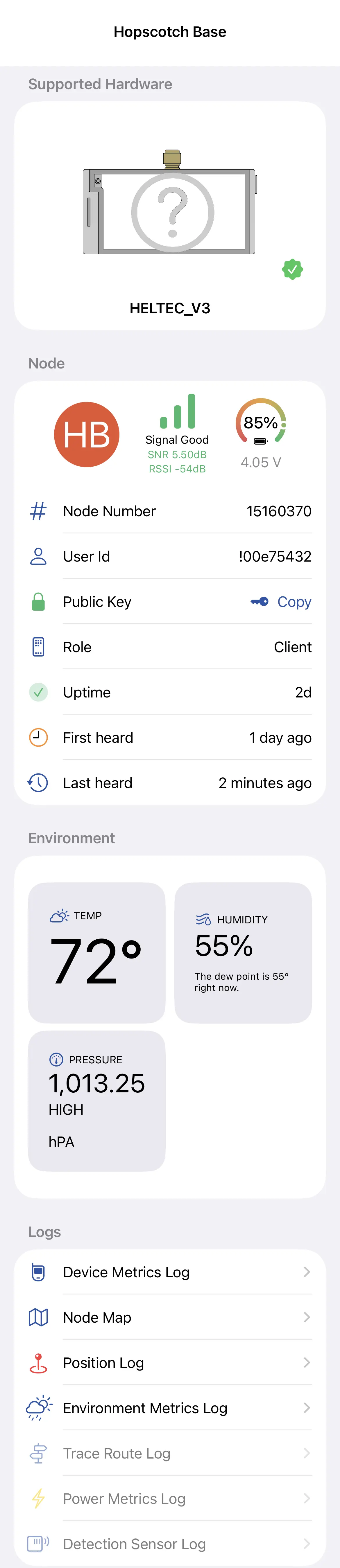
For messageable nodes, use Actions > Share Contact QRQRA scannable square code. In Meshtastic it encodes the Channel URL, which carries the channel and LoRa settings needed to join a mesh. to show a Meshtastic contact link and QRQRA scannable square code. In Meshtastic it encodes the Channel URL, which carries the channel and LoRa settings needed to join a mesh. code that another device can scan.
Share Connected Node
When a radio is connected, a Share Connected Node button appears in the node list toolbar. It opens the same share sheet as Share Contact QRQRA scannable square code. In Meshtastic it encodes the Channel URL, which carries the channel and LoRa settings needed to join a mesh., pre-filled with your own node — a quick way to hand someone your contact without finding yourself in the list.
Write a Contact to an NFC Tag
On iPhones with NFCNFC (Near Field Communication). A very short-range wireless protocol. Some clients expose NFC-related settings. hardware (iOS 18 or later), the contact share sheet also offers Write to NFCNFC (Near Field Communication). A very short-range wireless protocol. Some clients expose NFC-related settings. Tag. Hold a writable NFCNFC (Near Field Communication). A very short-range wireless protocol. Some clients expose NFC-related settings. tag near the top of your iPhone and the contact link is saved to it, replacing whatever the tag held before. Anyone can then tap that tag with their phone to open the contact in Meshtastic — the tag carries exactly the same link the QRQRA scannable square code. In Meshtastic it encodes the Channel URL, which carries the channel and LoRa settings needed to join a mesh. code encodes.
Importing a Shared Contact
Opening a Meshtastic contact link — by scanning a QRQRA scannable square code. In Meshtastic it encodes the Channel URL, which carries the channel and LoRa settings needed to join a mesh. code, tapping a shared link, or tapping an NFCNFC (Near Field Communication). A very short-range wireless protocol. Some clients expose NFC-related settings. tag — presents a confirmation sheet before anything is added. The sheet shows the node's colored initials, its long name, and an explanation that adding the contact saves their name and public key to your connected node. Choose Add Contact to import, or Cancel to dismiss.
If the import fails — most often because the radio disconnected — the sheet stays open and shows the reason so you can reconnect and tap Add Contact again. It closes only once the contact has actually been sent to your node. A link that is damaged or truncated is reported as an invalid format instead of being imported.
Importing a contact requires firmware 2.6.9 or later on the connected node.
Air Quality
Nodes with a particulate-matter sensor — reporting the firmware's Air Quality telemetry — show an Air Quality section with the latest PM2.5, PM1.0, and PM10 readings in µg/m³.
An Air Quality Metrics Log entry appears under the node's logs, with a seven-day chart and table of the particulate-matter readings (configurable columns), a Clear action to delete stored readings, and CSV export.
Signed Node
If a node signs its broadcast packets, a green shield (🛡️) Signed node row appears in the detail view, marked Verified automatically. This means the radio has cryptographically verified an XEdDSA signature from this node (firmware 2.8 or later). Because a node's identity broadcast is itself signed, its name and identity are verified by extension.
This is automatic trust observed from the radio — distinct from manually verifying a contact's public key out-of-band, which is a separate, user-asserted action. The row only ever affirms the good state; nodes that don't sign simply show no shield, which is not a warning.
Hardware Info
The hardware section shows information about the physical device running the node. The section title reflects the device's support status:
| Status | Meaning |
|---|---|
| Supported Hardware | Device is actively supported with firmware updates. |
| Discontinued Hardware | Device is no longer supported and does not receive firmware updates. |
For supported devices, the support tier is shown below the hardware name:
| Tier | Description |
|---|---|
| Flagship | Recommended device with full feature support and active development. |
| Niche | Supported device with active firmware updates and a specialised form factor. |
| Legacy | Older device that still receives firmware updates but may lack some features. |
Where to Buy
For devices with known purchase links, an I want one section appears below the hardware info. It shows the official vendor link and regional marketplace options (Amazon, Rokland, AliExpress, and others) sourced from msh.to.
Marketplace links are filtered to your device region, so only stores that ship to your area are shown. Vendor links (directly from the device manufacturer) are always shown regardless of region.
Tip — No purchase links shown Purchase links require an internet connection on first launch and after clearing app data. Connect the app to update the device catalog.