Local Mesh Discovery
Local Mesh Discovery scans your area to find nearby Meshtastic radios operating on different frequency settings. Use it to identify which LoRaLoRaA low-power, long-range wireless communication technology used by Meshtastic devices to enable communication over distances of several kilometers without the need for cellular, Wi-Fi, or other traditional network infrastructures. configuration is most active in your location before setting up a new node.
What It Does
The scanner switches through a series of LoRaLoRaA low-power, long-range wireless communication technology used by Meshtastic devices to enable communication over distances of several kilometers without the need for cellular, Wi-Fi, or other traditional network infrastructures. modem presetsModem PresetThe tradeoff between range and speed for LoRa transmissions. Each preset sets the bandwidth, spreading factor, and coding rate, and nodes need the same preset to hear each other., listens for a set period on each, and records how many nodes it hears and how busy the airwaves are (channel utilisation). It then presents a ranked list of settings ordered by activity.
When your connected radio reports local statistics, the scanner also captures the noise floor (the background RFRF (Radio Frequency). The radio signal a node transmits and receives over LoRa. energy on the channel, in dBm) for each preset and summarises it in the RFRF (Radio Frequency). The radio signal a node transmits and receives over LoRa. Health section. A lower (more negative) noise floor means a quieter, cleaner channel; a higher one indicates more interference. This helps you pick not just the busiest setting but the one with the healthiest signal environment.
Each preset is scanned on the default frequency slotFrequency SlotThe numbered frequency within a region's band that a node transmits on. Nodes must use the same frequency slot to hear each other. When it's left at 0, most regions pick the slot from a hash of the primary channel's name. so the radio listens on the same frequency the public mesh uses. If your radio is set to a custom frequency slotFrequency SlotThe numbered frequency within a region's band that a node transmits on. Nodes must use the same frequency slot to hear each other. When it's left at 0, most regions pick the slot from a hash of the primary channel's name., the scan temporarily uses the default slot while it runs and restores your original LoRaLoRaA low-power, long-range wireless communication technology used by Meshtastic devices to enable communication over distances of several kilometers without the need for cellular, Wi-Fi, or other traditional network infrastructures. configuration — including your frequency slotFrequency SlotThe numbered frequency within a region's band that a node transmits on. Nodes must use the same frequency slot to hear each other. When it's left at 0, most regions pick the slot from a hash of the primary channel's name. — automatically when the scan finishes.
You no longer need to put your primary channelPrimary ChannelThe channel used for a node's default traffic and its name in the mesh. It's channel 0, and its name helps set the node's frequency slot. on the default key before scanning. If your primary channelPrimary ChannelThe channel used for a node's default traffic and its name in the mesh. It's channel 0, and its name helps set the node's frequency slot. uses a custom key or name, Local Mesh Discovery temporarily switches it to the default public channel so the radio can both decode the public mesh and tune to its frequency, then restores your original channel automatically when the scan finishes. (Channel changes don't reboot the radio, so this happens instantly at the start and end of the scan.)
On supported devices running iOS 26+, the on-device AI assistant analyses the scan results and recommends the best configuration for your location — no internet connection required.
Running a Scan

- Go to Settings → Local Mesh Discovery.
- Tap Start Scan.
- The scanner cycles through settings automatically. Each cycle takes a few minutes — do not close the app during a scan.
- When the scan completes, results appear ranked by node count and channel activity.
Analyze Current Preset
If you only want a report for the preset your radio is already using, tap Analyze Current Preset. This runs a single, fast (about one minute) pass on your current setting and seeds the report from the nodes already in your database, animating them onto the map as it builds. It's a quick way to generate an RFRF (Radio Frequency). The radio signal a node transmits and receives over LoRa. Health and node report for your active configuration without cycling through every preset.
Reading Results
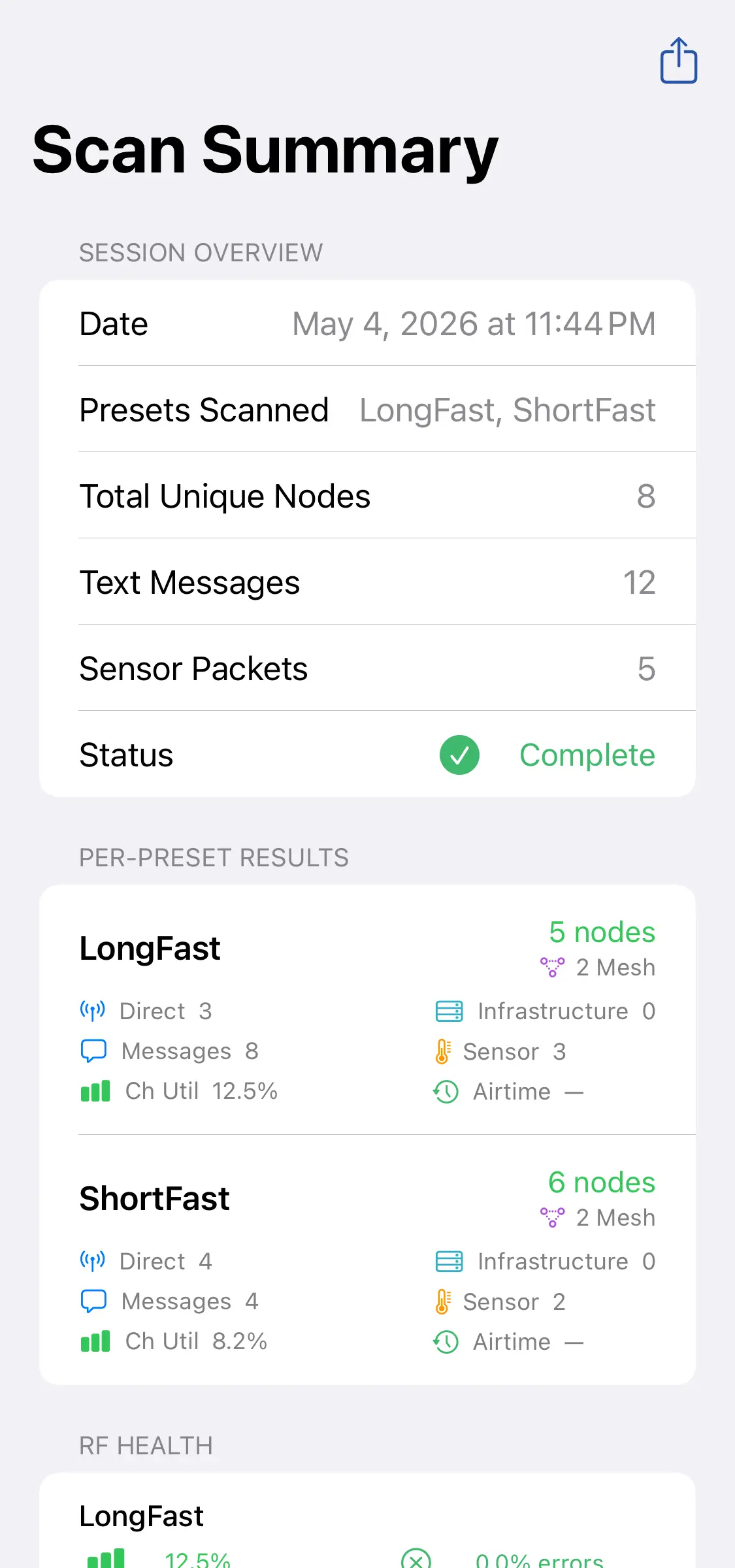
| Column | Description |
|---|---|
| Preset | LoRaLoRaA low-power, long-range wireless communication technology used by Meshtastic devices to enable communication over distances of several kilometers without the need for cellular, Wi-Fi, or other traditional network infrastructures. modem presetModem PresetThe tradeoff between range and speed for LoRa transmissions. Each preset sets the bandwidth, spreading factor, and coding rate, and nodes need the same preset to hear each other. (e.g., Long Fast, Long Slow) |
| Nodes Heard | Number of distinct nodes detected on this setting |
| Channel Utilisation | Percentage of airtime used — higher means more active |
| Noise Floor | Background RFRF (Radio Frequency). The radio signal a node transmits and receives over LoRa. energy in dBm — lower (more negative) is a cleaner channel |
| Recommendation | ✅ Best match for your area |
The RFRF (Radio Frequency). The radio signal a node transmits and receives over LoRa. Health card summarises the noise floor across the scan and calls out the quietest channel. Noise floor (and the rest of the report) is also included when you export the scan as a PDF.
Beacons
Some radios run in beacon mode and periodically broadcast a short message advertising their mesh — optionally the channel, region, and modem presetModem PresetThe tradeoff between range and speed for LoRa transmissions. Each preset sets the bandwidth, spreading factor, and coding rate, and nodes need the same preset to hear each other. it runs on. When a scan hears a beacon, it appears in the Beacons section of the results, showing the message, who sent it, and any advertised channel/region/preset.
Beacons also steer the scan for you:
- If a beacon advertises a modem presetModem PresetThe tradeoff between range and speed for LoRa transmissions. Each preset sets the bandwidth, spreading factor, and coding rate, and nodes need the same preset to hear each other. on the public channel, that preset is added to the scan automatically, so the run dwells on it too. The next time you set up a scan, any preset you've previously heard a beacon for is pre-selected in the Modem PresetsModem PresetThe tradeoff between range and speed for LoRa transmissions. Each preset sets the bandwidth, spreading factor, and coding rate, and nodes need the same preset to hear each other. list and marked with a beacon icon.
- If a beacon advertises a custom channel (its own name and PSKPSK (Pre-Shared Key). A secret code or passphrase used in Meshtastic channels for encryption, ensuring that only devices with the matching PSK can communicate within that specific channel.), the scan tunes the radio to that exact channel — name, key, region, preset, and frequency slotFrequency SlotThe numbered frequency within a region's band that a node transmits on. Nodes must use the same frequency slot to hear each other. When it's left at 0, most regions pick the slot from a hash of the primary channel's name. if the beacon gives one — during a dwell. A custom channel uses a different frequency and encryption than the public mesh, so scanning the bare preset wouldn't find it; discovery uses the key the beacon broadcast to tune in and measure that mesh directly. These targets appear in the results labeled as Preset · ChannelName.
This means a single beacon is enough for discovery to find and measure the mesh it points to — even a private one — without you having to know its settings in advance.
Add or switch to a beaconed channel
When a beacon advertises a channel, its entry in the Beacons section has a Switch to this channel button. It also gets an Add channel button when the advertised mesh is already on the frequency your radio is tuned to — adding the channel is enough to hear it, with no reboot and no change to your LoRaLoRaA low-power, long-range wireless communication technology used by Meshtastic devices to enable communication over distances of several kilometers without the need for cellular, Wi-Fi, or other traditional network infrastructures. settings.
Which of the two you are offered depends on the frequency the advertised mesh is on. Usually that comes from the channel's name, the region and the preset. A mesh can also sit on a frequency slotFrequency SlotThe numbered frequency within a region's band that a node transmits on. Nodes must use the same frequency slot to hear each other. When it's left at 0, most regions pick the slot from a hash of the primary channel's name. its name would not produce, and a beacon from one of those says which slot it is really using; the app takes it at its word rather than working the slot out itself, so Add channel is only offered when adding the channel would actually let you hear that mesh. A beacon that names a slot your region doesn't have gets no join buttons at all. A beacon that doesn't name a preset is on its region's default preset.
Tapping Switch to this channel (and confirming) sets your radio's primary channelPrimary ChannelThe channel used for a node's default traffic and its name in the mesh. It's channel 0, and its name helps set the node's frequency slot. to the advertised channel and applies the advertised region, preset, and frequency slotFrequency SlotThe numbered frequency within a region's band that a node transmits on. Nodes must use the same frequency slot to hear each other. When it's left at 0, most regions pick the slot from a hash of the primary channel's name.. If the beacon names a slot, your radio uses that slot instead of your own; if not, the radio works the slot out from the channel name. If the beacon names no preset, your radio moves to the region's default preset. The confirmation lists the preset, and the slot when there is one, before anything changes. Your radio reboots and reconnects on that mesh, replacing your previous channel settings — so use it when you actually want to join the mesh the beacon is advertising.
Applying a Setting
Tap a result row and then Apply Setting to configure your connected radio to match the most active setting in your area. This updates the LoRaLoRaA low-power, long-range wireless communication technology used by Meshtastic devices to enable communication over distances of several kilometers without the need for cellular, Wi-Fi, or other traditional network infrastructures. configuration on the radio directly.
This tool scans your local area to find nearby Meshtastic radios on different frequency settings. It switches between settings automatically, listens for a few minutes on each one, and then shows you which setting works best for your location based on how many radios it finds and how busy the airwaves are. On supported devices, local on-device AI will analyse your scan results and recommend the best setting — no internet connection required.