Why your new node might not see your local mesh

A freshly flashed node with the region set hears nothing. Or a node that works fine at home goes to an event, switches to the event's settings, and still lists familiar names that won't answer.
Nothing is broken in either case. Your node is on different LoRa settings than the nodes you're trying to reach, and the fix is quick once you know where to look.
Your preset has to match your mesh
A modem preset such as Long Fast or Medium Fast bundles bandwidth, spreading factor, and coding rate into one choice, trading range against airtime. You can still set the three yourself by turning off Use Preset. Those same three values decide what your radio can decode. Two nodes on different presets don't have a weak link. They have no link at all, at any distance, which is why local communities settle on one preset together.
The preset also picks your frequency. If you haven't renamed your primary channel, the firmware hashes the preset name to choose the frequency slot. In the US region, Long Fast listens on 906.875 MHz (slot 20), Long Turbo on 908.750 MHz (slot 14), and Medium Fast on 913.125 MHz (slot 45).
Why the defaults might not match your area
For years, enough nodes stayed on the defaults that they worked as a public mesh anyone could join. That's a convention, not a guarantee.
Busy metro meshes have been moving off Long Fast to cut congestion, for the reasons in Is LongFast Holding Your Mesh Back?. Events often pick their own preset for the weekend, and some communities use a custom channel name or key.
The US default has moved too. In 2.8, setting the region to US on the device screen for the first time starts the node on Long Turbo, as covered in Let's talk about 2.8. Setting it from a client or the CLI leaves it on Long Fast. Two identical nodes set up the same afternoon can end up nearly 2 MHz apart.
If you know there's an active mesh nearby, hearing nothing points at your settings. If nobody has confirmed one, silence may just mean nobody's there yet.
Why a node you bring with you looks connected
Your node database survives configuration changes and reboots, which is usually what you want. Take a node from home to an event, switch presets, and every home node is still listed with its name and last-heard time. It looks reachable. It isn't.
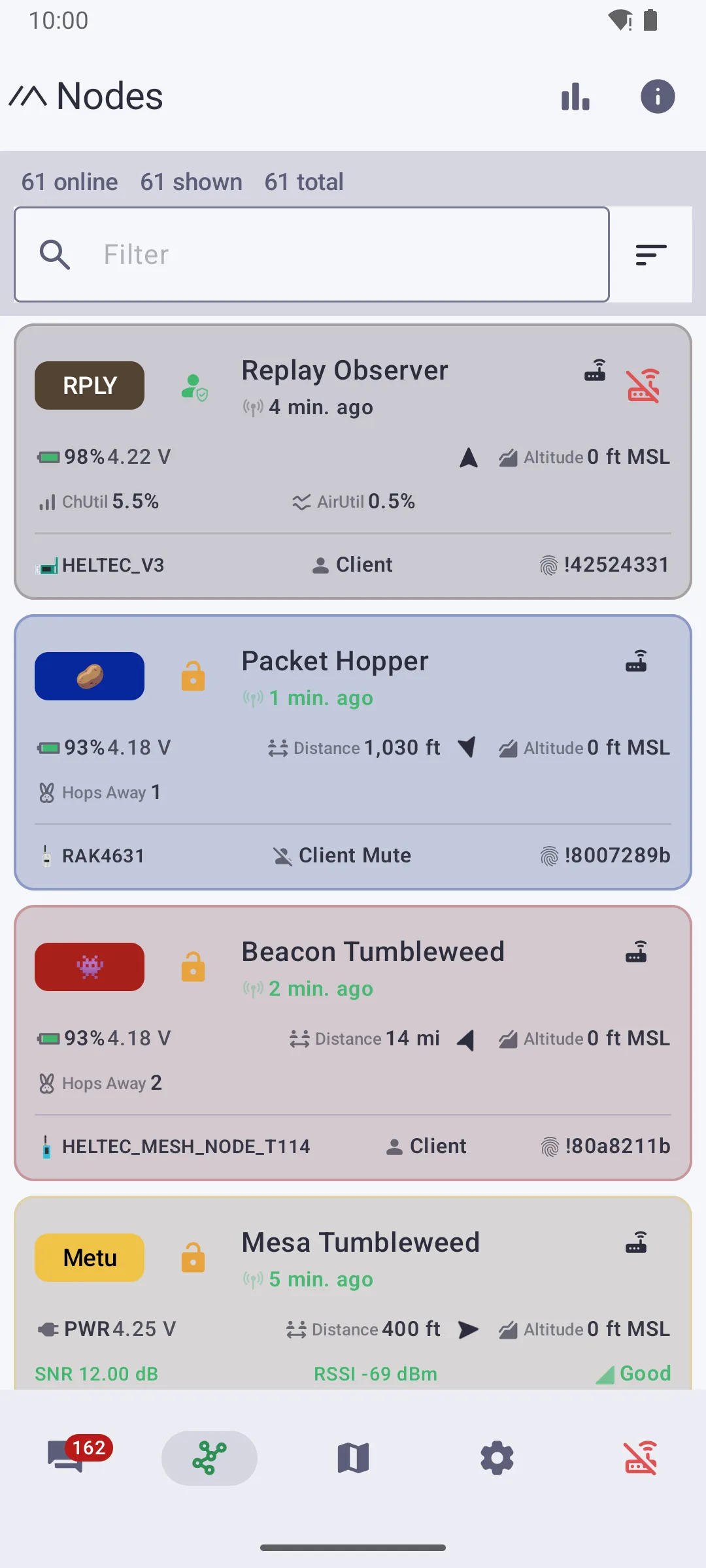
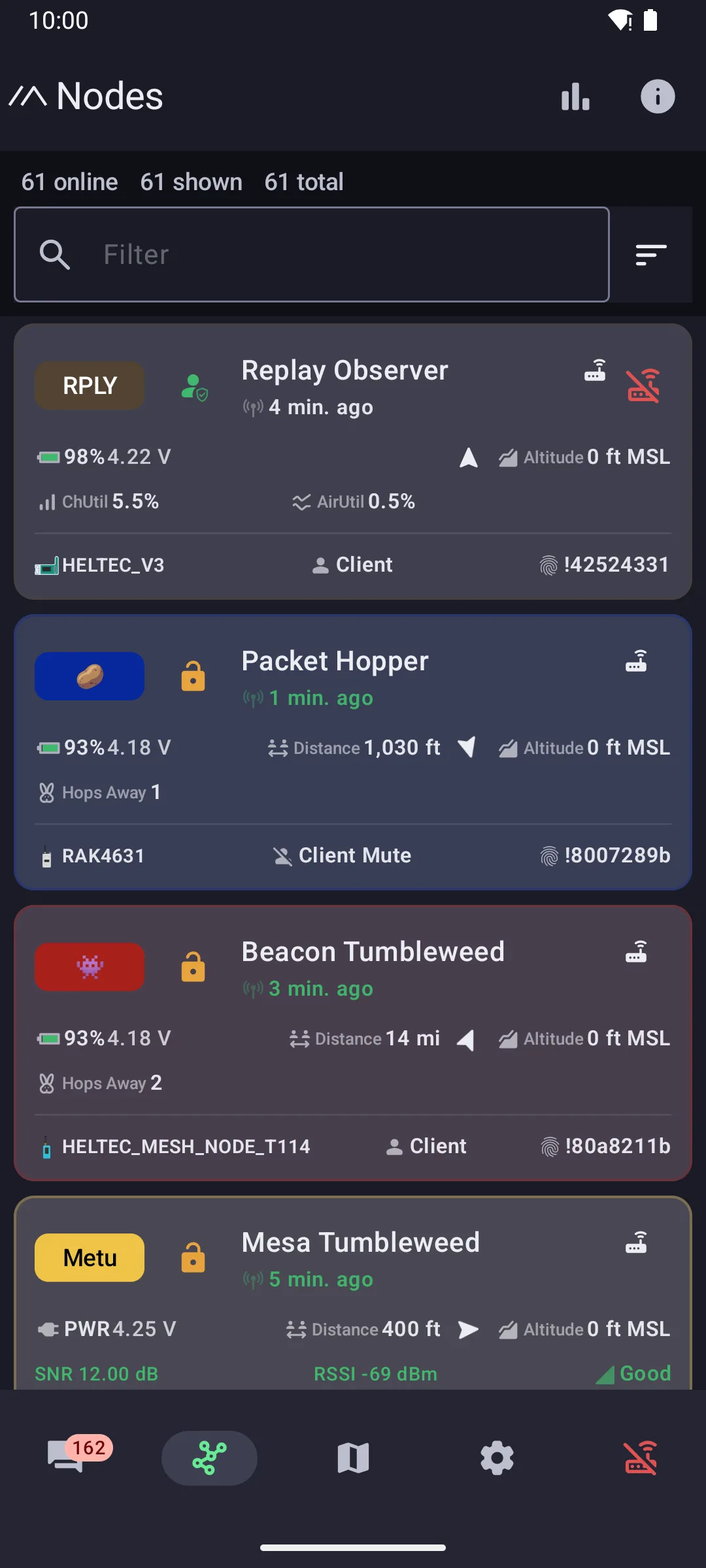
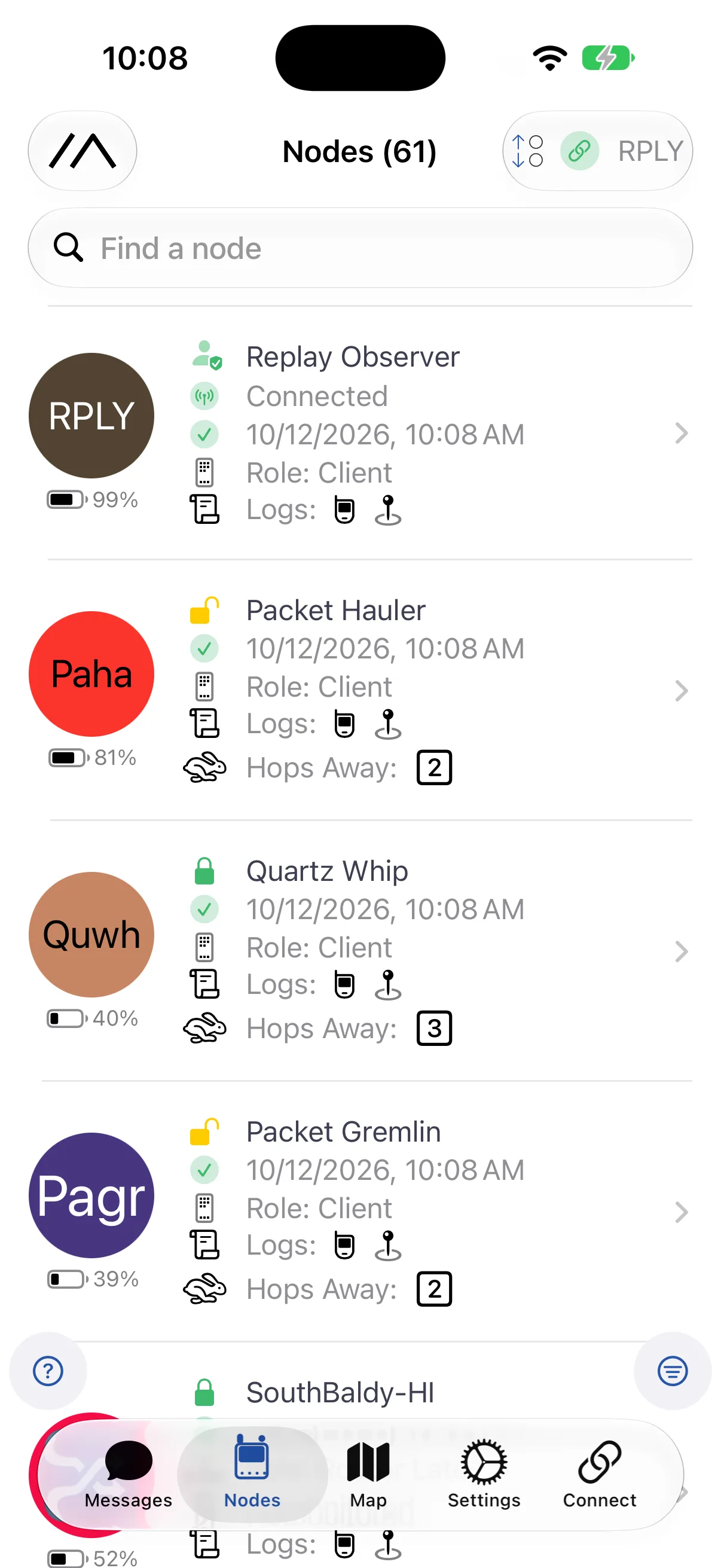
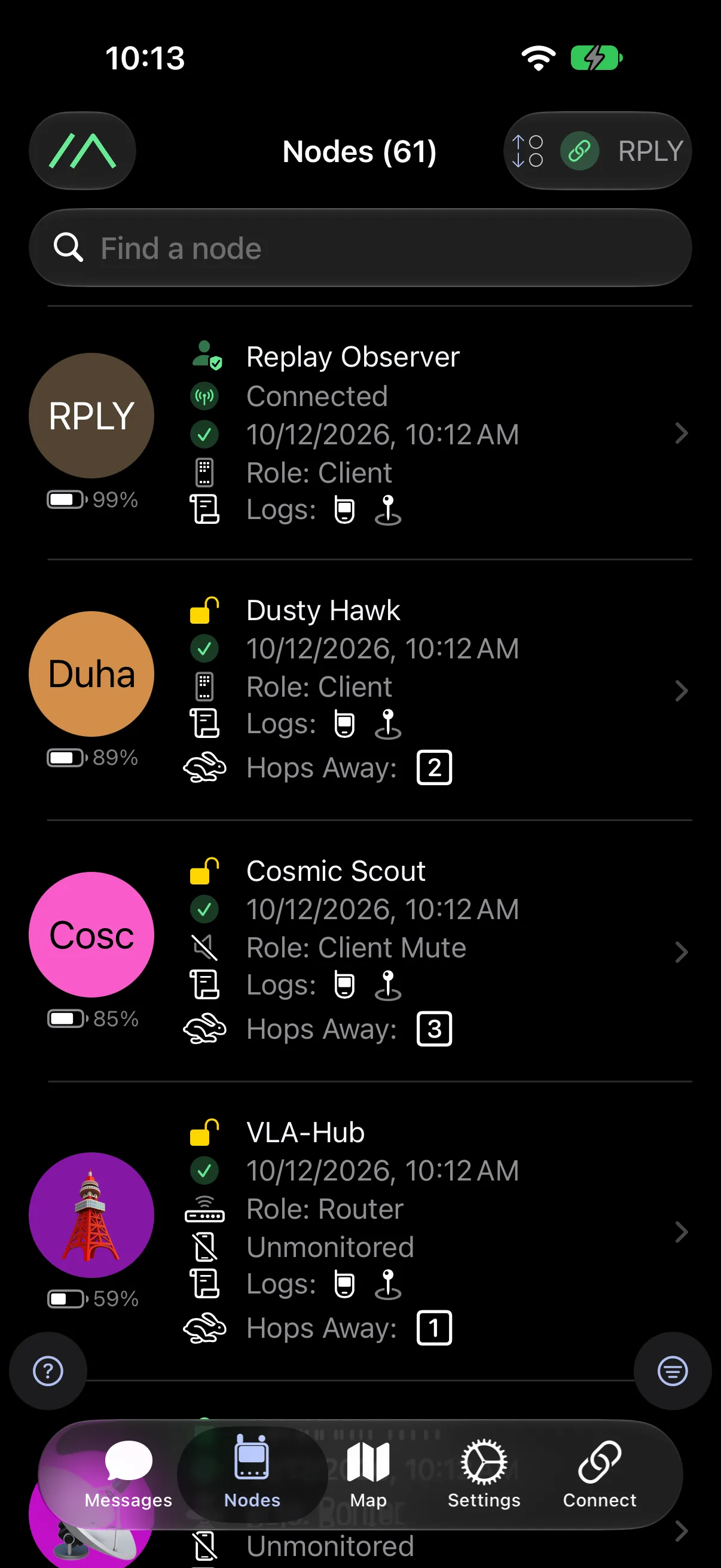
Firmware 2.8.1 and later records which LoRa settings each node was heard on, so clients can mark nodes not heard on your current settings. The firmware can't tell you where those nodes went, because a radio can't hear a channel it isn't tuned to.
Test with a direct message
A direct message is acknowledged by the node you sent it to, and that's the confirmation to look for. If no node relays it and your node runs out of retries, your client reports an error. If a nearby node relays it, your node stops retrying, but only the recipient's acknowledgment means it arrived.
A channel message counts as delivered as soon as your node overhears another node repeat it, and if nobody repeats it, you get an error too. The gap is in between: one nearby node repeats your message, nobody beyond it hears it, and your client still shows success. To check whether you can reach someone, send a direct message.
Find your local mesh
Local Mesh Discovery cycles your radio through a set of presets, listens on each for a dwell time you choose, and ranks them by what it heard. It's in the Android and Apple clients.
This scan heard 60 nodes on Medium Fast and six on Long Fast. A node left on the default would see only a few of the people around it.
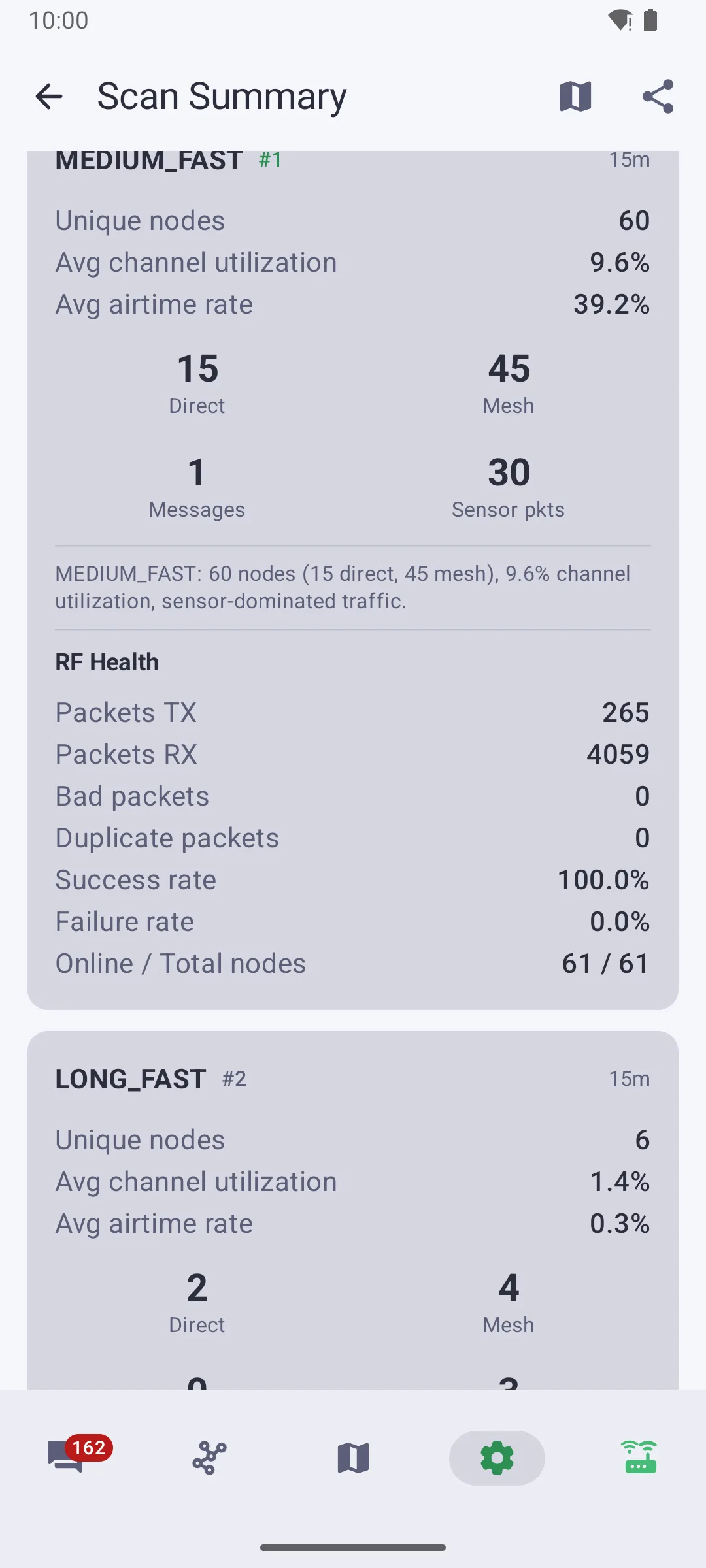
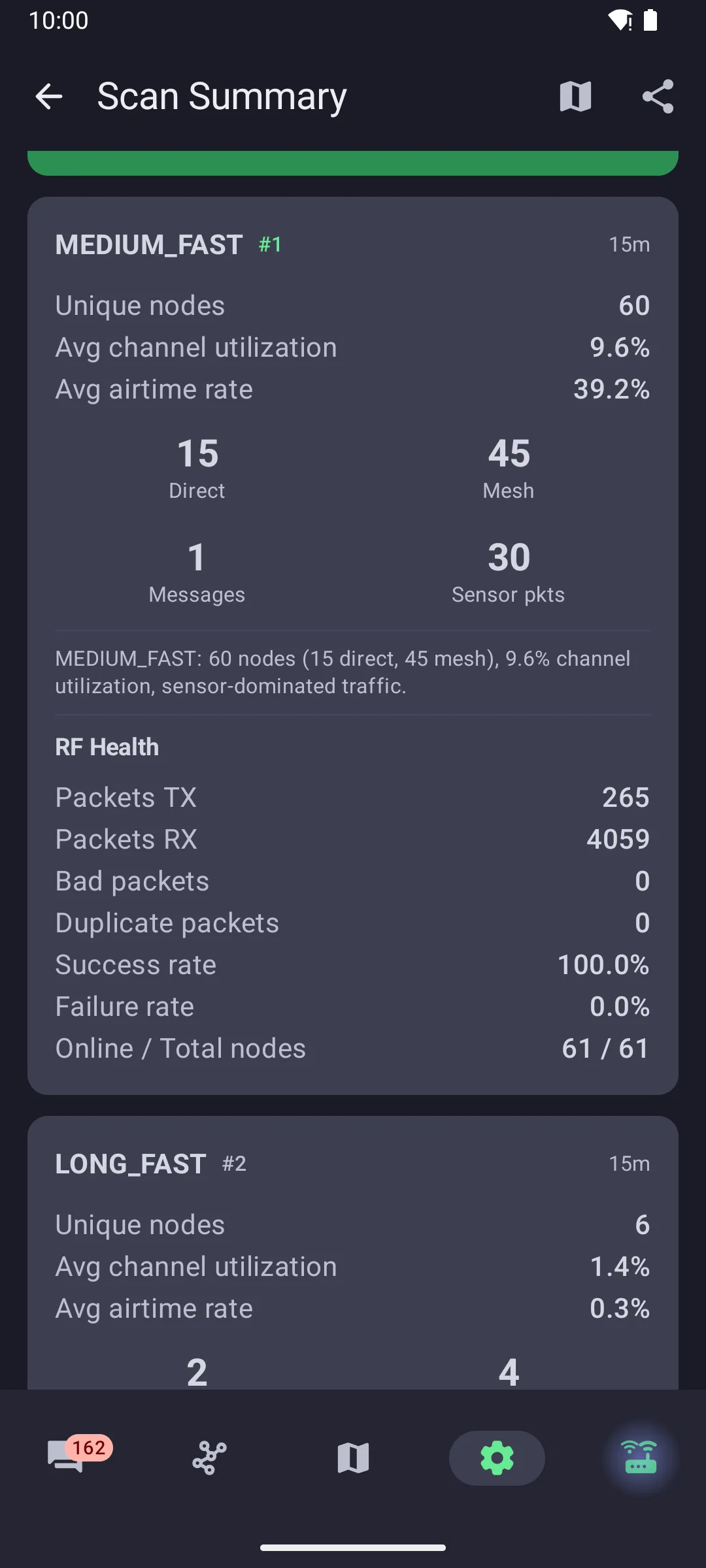
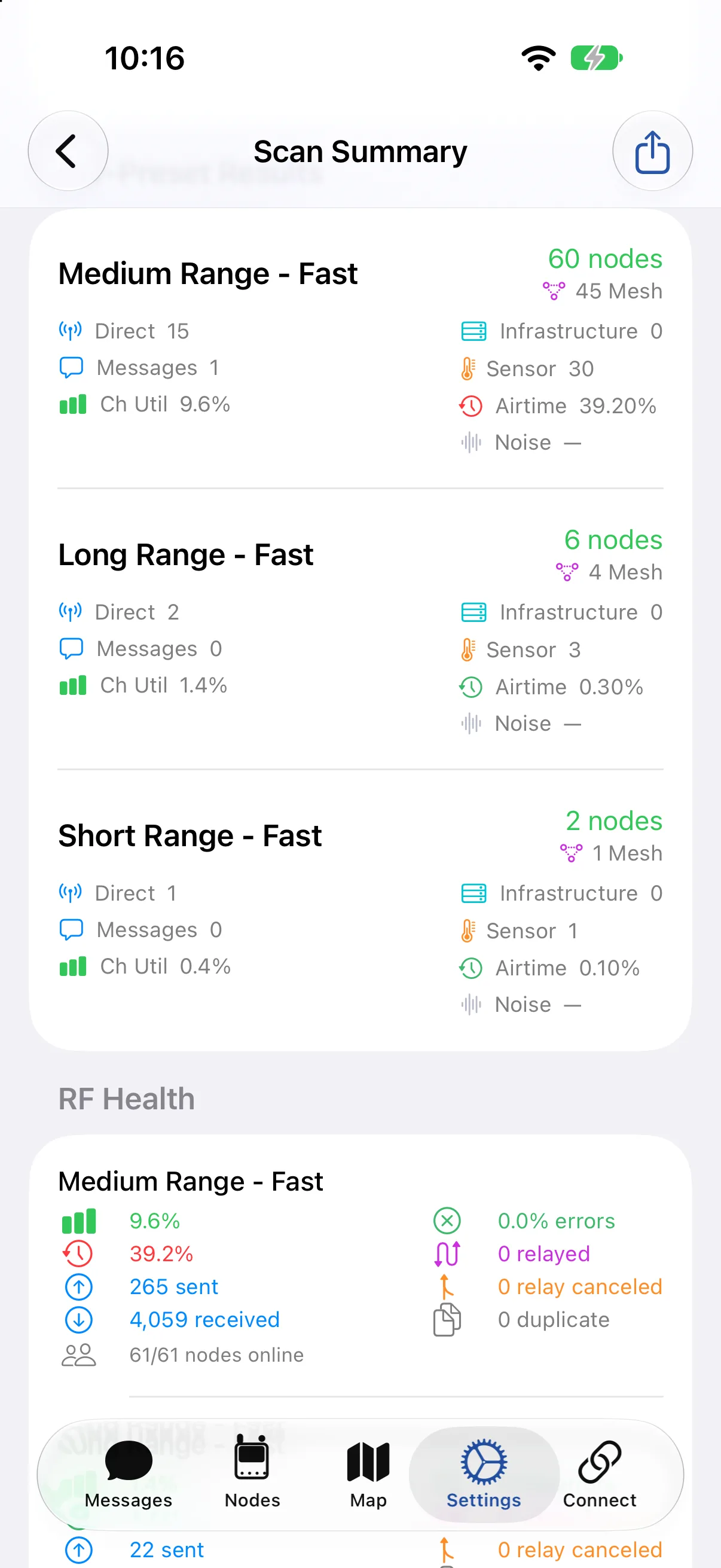
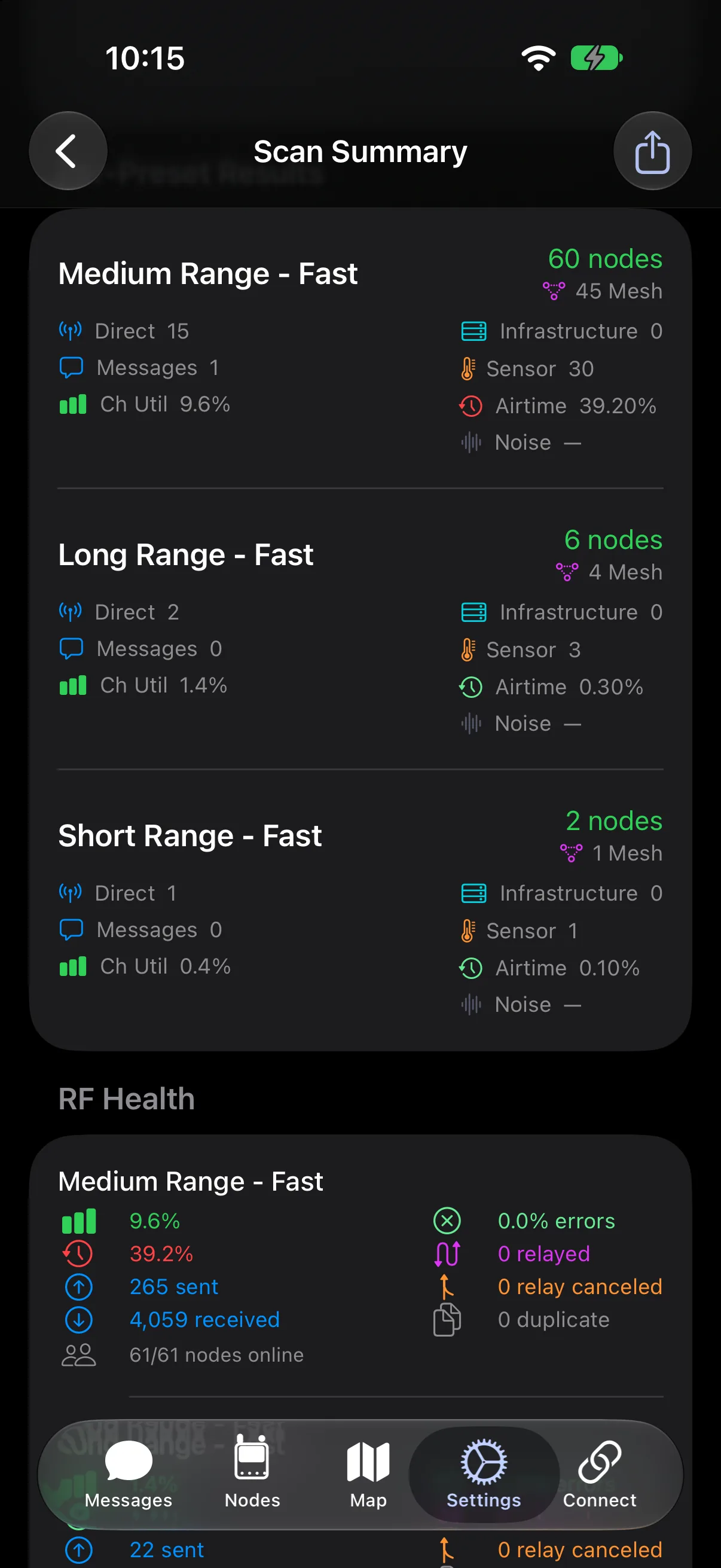
A scan listens on the default frequency slot with the default public channel. A mesh with a custom channel name is on a different slot, and one with a custom key can't be decoded, so neither shows up. An empty scan means nothing is on the public channel near you, not that nothing is there.
For anything a scan can't see, ask. Regional groups share their settings with people joining, and the local groups directory lists Discord servers, Telegram groups, and websites by region.
Keep private channels on the public mesh
Private conversations don't require leaving the public mesh, and renaming your primary channel is the wrong way to get them. Its name sets your frequency slot, so renaming it moves you off the slot everyone else uses. Put private groups on secondary channels 1 through 7 instead. They share your LoRa settings, use their own keys, and leave your frequency slot alone.
Say hello to your local mesh
If you're setting up a node, scan before you assume, then say hello to your local group. They'll tell you what they run. The Joining your local mesh page in Getting Started covers all of this in one place. If you get stuck, ask on the Meshtastic Discord or the Meshtastic Subreddit.